
Ready to start day trading but unsure if your laptop and furniture will cut it? Equipment matters more than most new traders expect — the right day trading desk setup cuts distractions, speeds decision-making, and protects your body during long market hours.
This guide shows a practical, affordable path to a complete trading workspace for roughly $1,000. That figure is a target: you can reach it with a few compromises (budget desk, two 24″ monitors) or expand slightly for more comfort. Either way, the goal is the same — a functional setup that helps you focus and trade better.
What you’ll get from this guide:
- Essential kit broken down (monitors, computer, desk, chair, internet, software)
- Two realistic builds — budget and standard — with exact swaps to hit the price target
- Step-by-step setup and quick optimizations to improve focus and performance
If you want to follow along, start with our one-page parts checklist and prioritize: computer first, then monitor(s), then chair and desk. Small changes (adding a second monitor, improving your chair) deliver the biggest gains for the least cost.
Why Your Day Trading Setup Actually Matters
Before we jump into gear, it helps to understand why a proper setup matters for trading. Beginners often assume a regular home computer is enough — sometimes it is, but more often limitations in hardware, displays, or ergonomics create measurable disadvantages: slower execution, missed opportunities, and faster mental fatigue.
Speed Wins in Day Trading
Day trading is buying and selling within the same day, often holding positions for minutes or seconds. Market conditions can change in milliseconds, so even small delays matter. For example, a one-second platform lag during a volatile breakout can turn a potential $200 gain into a $50 loss depending on position size — illustrating why latency and a responsive computer matter.
Slow startup times, heavy CPU usage, or network latency all slow your ability to analyze data and place orders. Aim to minimize delays by using a reliable computer, wired ethernet, and a lightweight trading platform layout so your decisions and executions stay timely.
Multiple Monitors Change Everything
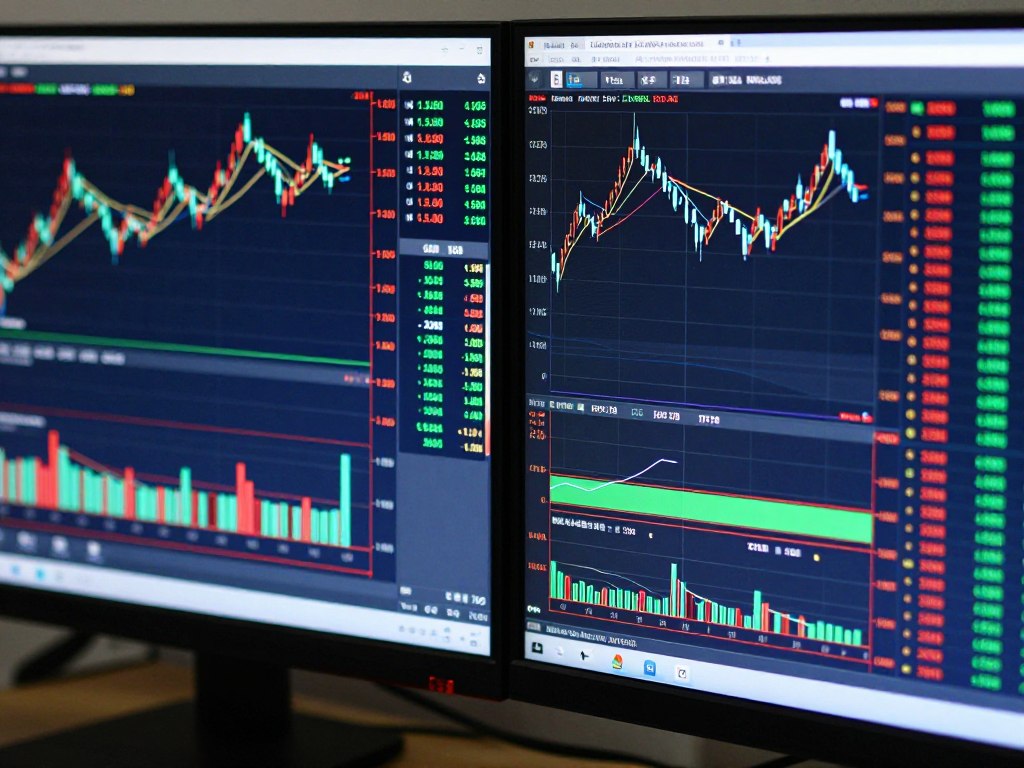
Trying to monitor charts, news, orders, and reference data on a single screen forces constant window switching. Multiple monitors let you keep price charts on one screen, your trading platform on another, and live news or watchlists on a third — reducing context switching and helping you act faster.
Research on multitasking and screen real estate suggests more visible information reduces time lost to window management. In trading terms, that means faster decisions and fewer missed setups. Later sections cover practical monitor configurations and how to balance screen count with your computer’s capabilities.
Comfort Affects Your Decisions
Traders often underestimate ergonomic factors. Sitting in a poor chair or working at the wrong desk height increases muscle tension, reduces focus, and accelerates fatigue — all of which degrade decision-making over long sessions.
Invest in a chair with lumbar support, set your monitor height correctly, and consider a sit-stand desk to alternate positions. Small comfort improvements preserve focus across long market hours and help you make clearer, less stressful trading decisions.
Quick risks of a poor setup:
- Missed trades from slow responses or hidden alerts
- Lower quality decisions due to discomfort and fatigue
- Lost time from constant window switching and reorganizing screens
Want the details? Jump to the monitors section, the internet and latency tips, or the chair and desk recommendations for step-by-step guidance.
Essential Components for Your Trading Desk
Below are the hardware and software components that form a solid day trading desk setup. Each item affects how quickly you see market data, how reliably you can execute trades, and how long you can trade comfortably. I’ll explain what to buy, why it matters, and practical options that fit a ~$1,000 target (with trade-offs).
Monitors: Your Window to the Markets
Monitors are the single most visible part of your trading setup. They display charts, watchlists, order entry, and news simultaneously — so choose screens that give you clear, reliable information without wasting desk space.
What matters for trading monitors (quick checklist):
- Size: 24″ is the baseline; 27″ gives more workspace for charts
- Resolution: Full HD (1920×1080) minimum; higher if you want more chart detail
- Panel: IPS preferred for consistent color and viewing angles
- Bezels: Thin bezels reduce gaps in multi-monitor arrays
- Mounting: VESA compatibility lets you add arms for better ergonomics
- Inputs: HDMI and DisplayPort make connecting multiple screens easier
Recommended monitor configurations (pros/cons):
- Two 24″ monitors — Best budget balance: identical screens simplify alignment and scaling.
- 27″ primary + 24″ secondary — More primary chart real estate; mix sizes if you want a large chart and a reference screen.
- Three+ monitors — Great for traders watching many symbols, but needs more graphics outputs and desk space.
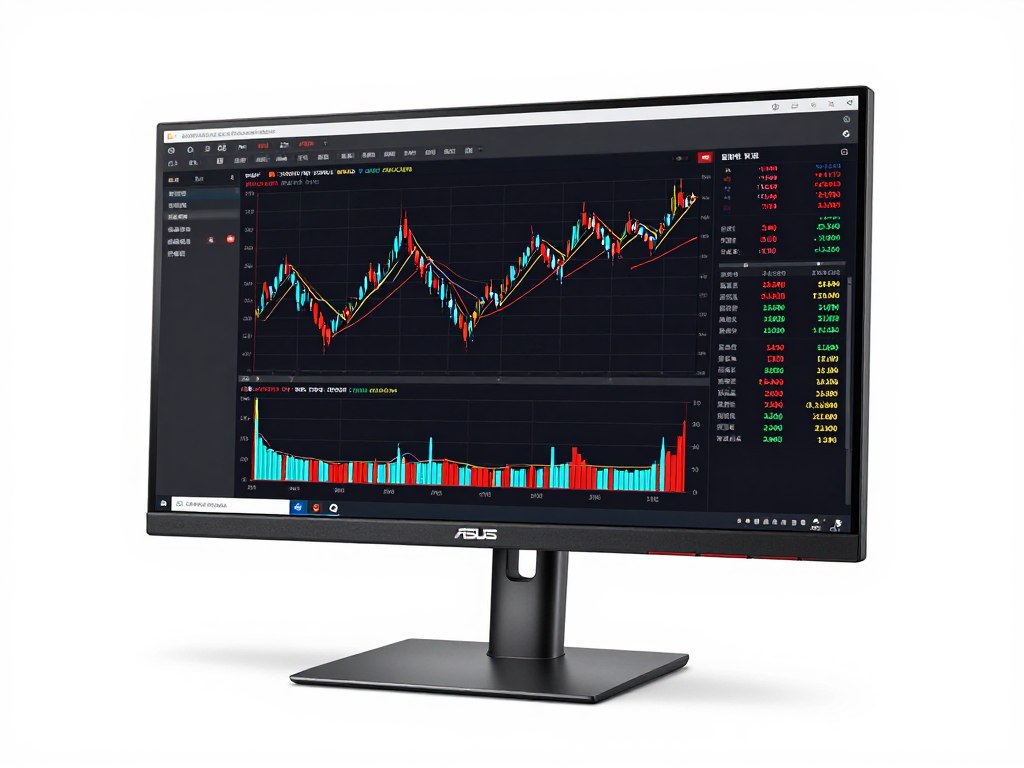
Solid value for a trading secondary or matched dual setup: 24″ size, IPS clarity, and thin bezels make it easy to put two side-by-side for charts and news.
- Full HD 1920×1080
- Eye-care modes reduce strain
- Thin bezels for multi-monitor arrays
Best for: Budget-conscious traders building a multi-monitor setup
Price Range: Around $70–100
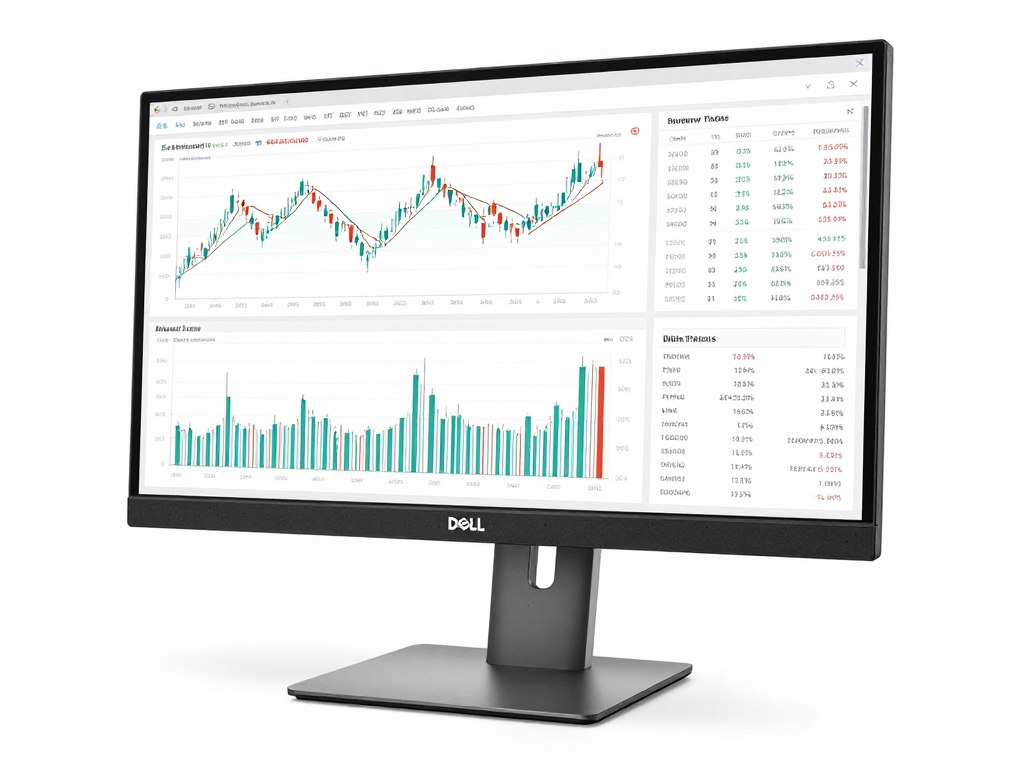
Use as a primary display for large charts and multi-pane layouts. A 27″ primary reduces the need to zoom and scroll when tracking multiple indicators.
- 27″ for larger chart area
- ComfortView reduces blue light
- Good warranty and reliability
Best for: Traders who want a roomy primary monitor
Price Range: Around $150–180
Tip: use identical monitors where possible to avoid scaling and alignment headaches. If you mix sizes, set Windows scaling per display and arrange physical heights so chart baselines align.
Computer: The Brain of Your Trading Operation
Your computer runs charting software, trading platforms, and news feeds. For most day traders a mid-range system is sufficient — prioritize reliability and fast storage over flashy specs.
Recommended minimums and why they matter:
- Processor: Intel Core i5 or AMD Ryzen 5 — smooth multi-tasking for multiple windows and data streams
- RAM: 8GB minimum; 16GB recommended if you run many browser tabs, several charting windows, or additional analytics tools
- Storage: 256GB SSD minimum — SSDs boot and load applications much faster than HDDs
- Graphics: Integrated graphics handle two to three monitors; discrete GPU needed for 4+ screens or 4K displays
- Connectivity: Multiple display outputs (HDMI/DisplayPort), several USB ports, and reliable Ethernet are essential
Desktop vs. Laptop: desktops give better price-to-performance and easier upgrades; laptops offer portability and the ability to connect to external monitors via HDMI or a docking station. Choose based on how often you trade away from your desk.
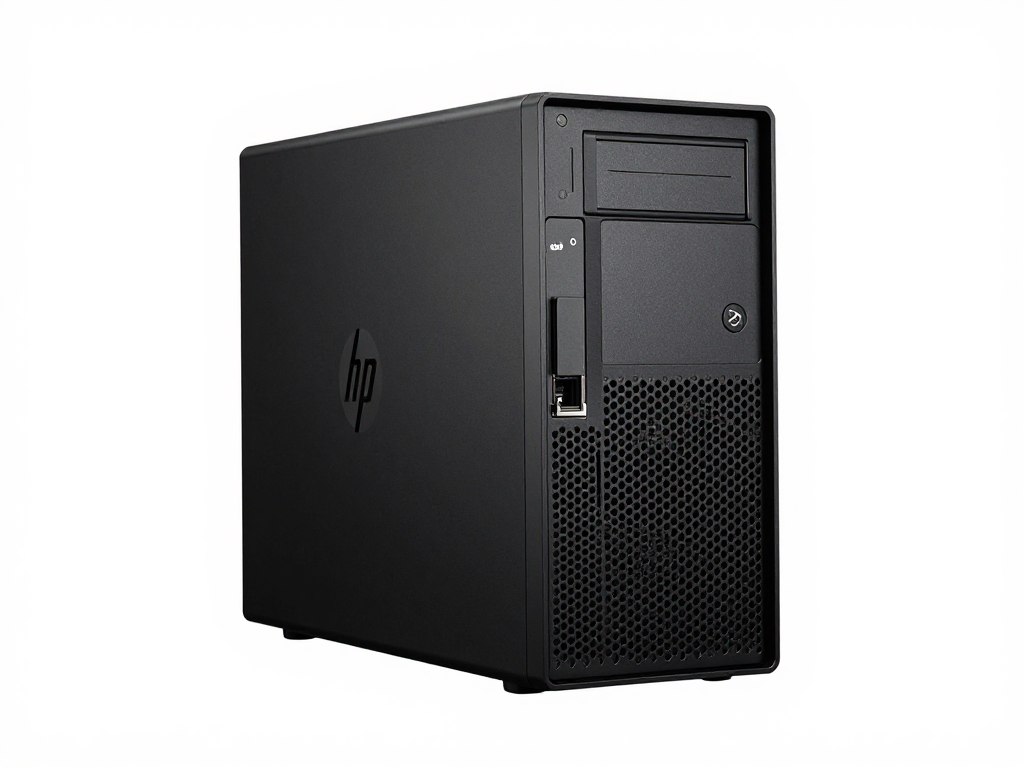
Good entry desktop for trading: affordable CPU, 8GB RAM, and fast SSD. Desktops generally provide more display ports and upgrade options than laptops.
- Intel Core i5
- 8GB RAM (upgradeable)
- 256GB SSD
Best for: Traders on a budget who want upgrade flexibility
Price Range: Around $400–450
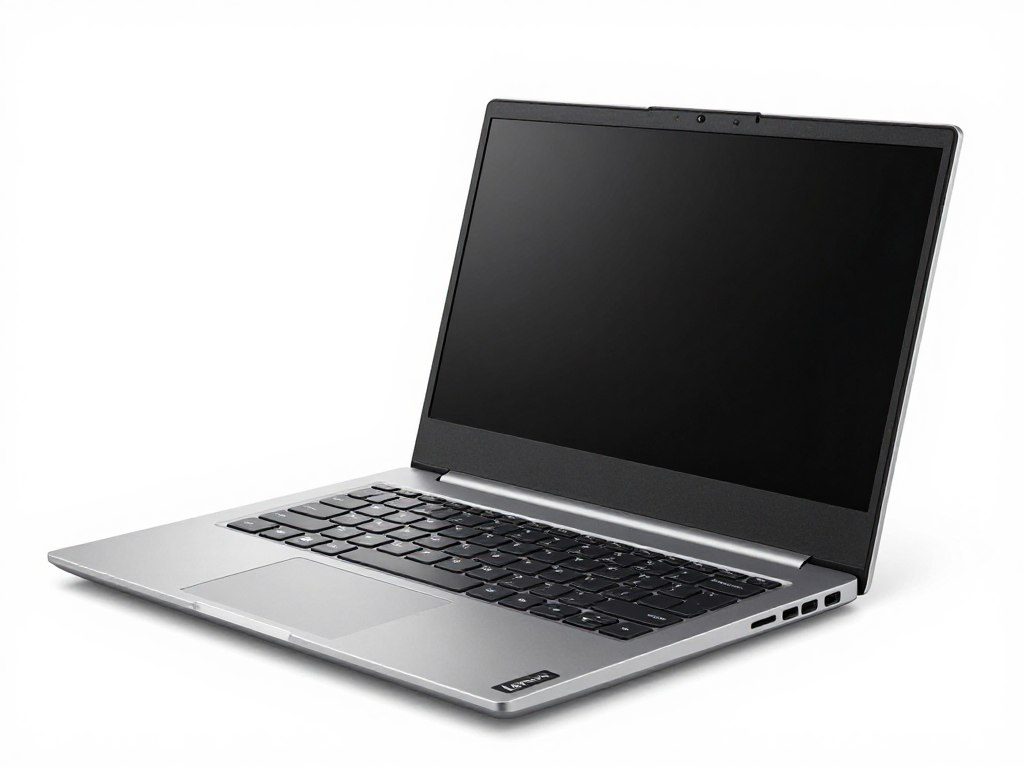
A portable option you can pair with external monitors at your desk. Useful if you travel or want a backup machine for trades on the go.
- AMD Ryzen 5
- 8GB RAM, 256GB SSD
- HDMI out for external monitors
Best for: Traders who need flexibility and portability
Price Range: Around $450–500
Practical notes on video outputs: check the number and type of display outputs on your computer. If you need more monitors than your GPU supports, use a docking station, USB-to-DisplayPort adapter, or a discrete GPU upgrade.
Software and platforms: choose a trading platform and charting software that match your needs and computer specs. Common choices include broker platforms (Thinkorswim, Interactive Brokers) and charting tools (TradingView). Focus on learning one platform rather than chasing features.
Buy decision matrix (one-line rules):
- Budget: two identical 24″ monitors + mid-range desktop — best value
- Balanced: 27″ primary + 24″ secondary + reliable desktop — best comfort/performance mix
- Premium: three+ monitors or higher-res displays and discrete GPU — for serious multi-symbol traders
Keyboard, Mouse, and Essential Accessories
Small accessories make a big difference during long trading sessions. Comfortable input devices, correct lighting, and tidy cables reduce fatigue, speed routine tasks, and keep your workspace distraction-free so you can focus on the markets.
Keyboard and Mouse Setup
You’ll use the keyboard and mouse constantly — entering symbols, adjusting orders, and navigating charts dozens or hundreds of times per day. A poor keyboard or mouse causes hand fatigue and slows your reactions.
Practical guidance:
- Choose a keyboard with comfortable key travel and a stable base; mechanical keys feel more tactile but a quality membrane works fine.
- Pick a mouse that fits your hand and glides smoothly; wired mice avoid charging hassles, wireless mice reduce cable clutter — choose what keeps you most productive.
- Consider a soft wrist rest and keep wrists neutral (not bent up or down) to reduce strain during long hours.
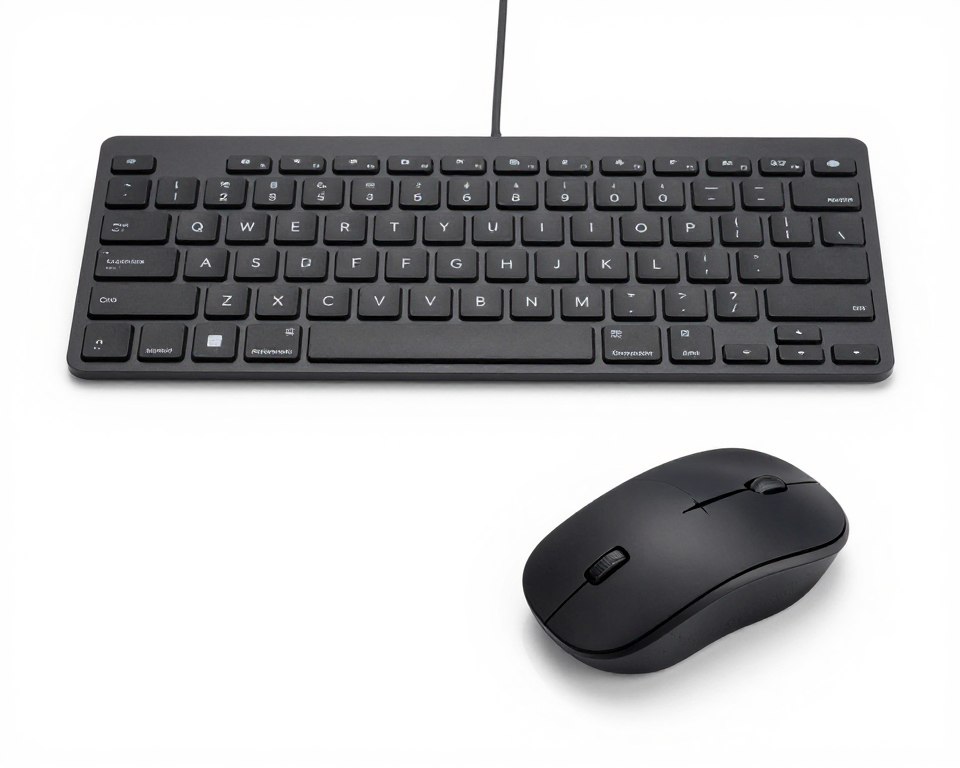
A reliable, budget-friendly combo that removes cables from the main surface and includes a full number pad for quick price entry.
- Full-size keyboard with number pad
- Comfortable mouse for extended use
- Plug-and-play receiver with long battery life
Best for: Traders wanting reliable, affordable input devices
Price Range: Around $25–35
Lighting for Reduced Eye Strain
Good lighting prevents eye fatigue and headaches. Overhead lights often create screen glare; a focused desk lamp positioned to the side eliminates reflections while illuminating notes and reference material.
Lighting tips:
- Use an adjustable LED desk lamp and position it to the side of your primary monitor to avoid glare.
- Match color temperature to your room (cooler for daytime, warmer for evenings) and keep brightness comfortable — around mid-level for most setups.
- Follow the 20-20-20 rule: every 20 minutes, look at something 20 feet away for 20 seconds.
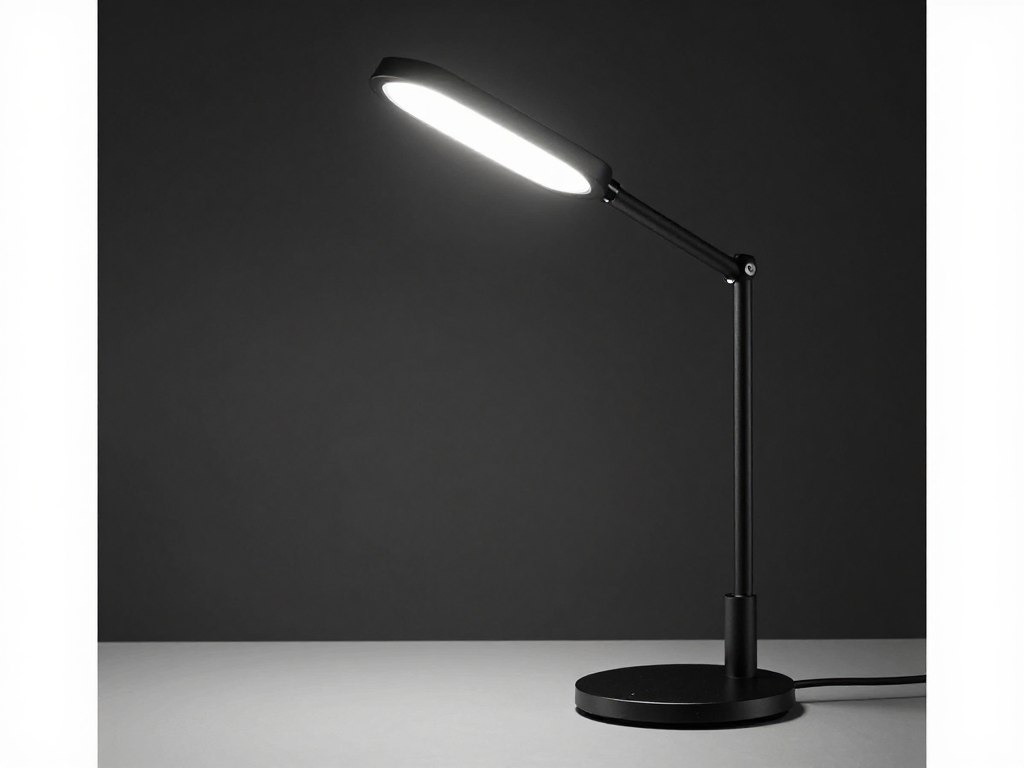
Adjustable brightness and color modes help you match ambient light and reduce eye strain during long market hours.
- Multiple brightness and color temperature settings
- Flexible arm for precise positioning
- Memory function for preferred settings
Best for: Reducing eye strain during long market hours
Price Range: Around $35–45
Cable Management Solutions
Multiple screens and devices create cable clutter. Organize cables to improve safety, airflow, and cleaning access — and to prevent accidental disconnections when moving a standing desk.
Simple, effective strategies:
- Bundle cables with sleeves or Velcro ties to keep them out of sight.
- Use cable clips along desk edges to route wires neatly and prevent snagging.
- Mount a surge-protected power strip under the desk and leave slack for height adjustment on sit-stand desks.
- Consider an under-desk cable tray to hide excess length and power bricks.
Quick buys under $50 (high ROI):
- Wrist rest or small gel pad — reduces wrist strain
- Basic LED desk lamp with adjustable color — lowers eye fatigue
- Velcro cable ties + cable sleeve — keeps cables tidy
Before your first trading day: test mouse responsiveness, set lamp brightness, and verify cable slack for any desk-height movement.
Your Complete $1,000 Day Trading Desk Setup
Now let’s assemble the parts into two realistic configurations so you can pick the path that fits your priorities. Prices fluctuate, so the totals below are approximate examples to help you plan. The goal: a functional trading desk that balances performance, comfort, and cost — with clear swaps that get you to the ~$1,000 target.
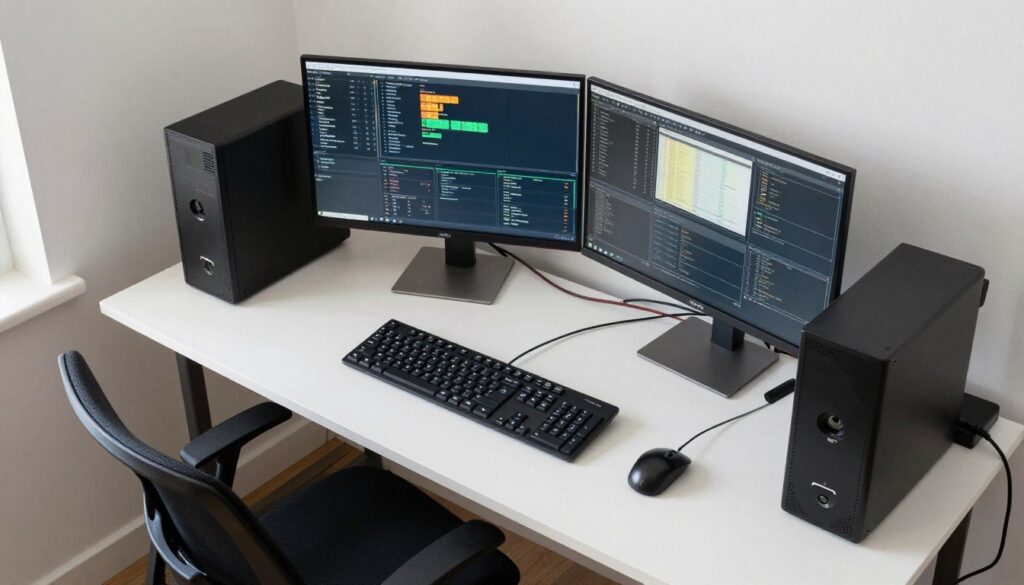
Standard Configuration: Best Overall Value
This balanced build emphasizes comfort and performance so you can trade longer, stay focused, and process more market data without constant upgrades.
| Component | Product | Approx. Price |
| Monitor 1 | Dell SE2722H 27-Inch (Primary) | $165 |
| Monitor 2 | ASUS VA24EHE 24-Inch (Secondary) | $120 |
| Computer | HP Desktop with Intel i5 | $425 |
| Desk | Electric Standing Desk | $250 |
| Chair | Ergonomic Office Chair | $140 |
| Keyboard & Mouse | Logitech MK270 Wireless Combo | $30 |
| Lighting | LED Desk Lamp | $40 |
| Accessories | Cables, Power Strip, Cable Management | $30 |
| Estimated Total | Complete Setup | $1,200 |
Notes: this standard configuration gives better ergonomics (standing desk) and a larger primary screen for clearer charts. The estimated total is about $1,200 — slightly above the $1,000 target. If you need to lower cost, see the “How to reach $1,000” section below.
Budget Configuration: Maximum Savings
This stripped-but-capable option keeps essentials intact so you can start trading without sacrificing monitor space or a reliable computer.
| Component | Product | Approx. Price |
| Monitor 1 | ASUS VA24EHE 24-Inch | $120 |
| Monitor 2 | ASUS VA24EHE 24-Inch | $120 |
| Computer | HP Desktop with Intel i5 | $425 |
| Desk | SHW 55-Inch Computer Desk | $110 |
| Chair | Ergonomic Office Chair | $140 |
| Keyboard & Mouse | Logitech MK270 Wireless Combo | $30 |
| Lighting | LED Desk Lamp | $40 |
| Accessories | Cables, Power Strip, Cable Management | $20 |
| Estimated Total | Complete Setup | $1,005 |
This budget configuration lands very close to $1,000 and retains dual monitors and a reliable desktop — the main compromise is using a fixed-height desk instead of a standing desk. That swap saves money but reduces the sitting/standing flexibility that improves long-term comfort and focus.
How to Reach the $1,000 Target
If your goal is to hit $1,000 exactly, here are practical swaps and their approximate savings:
- Swap the standing desk for the SHW fixed desk — saves ≈ $130
- Choose two identical 24″ monitors instead of a 27″ + 24″ mix — saves ≈ $45
- Buy used monitors or desk (in good condition) — can save $50–150 depending on quality
Example: making the two swaps above reduces the standard configuration from ~$1,200 to about $1,025. Buying one or two used components (monitor or desk) can bridge the final gap to $1,000.
Priority If You Can't Buy Everything
When budget is tight, prioritize purchases by impact on trading performance:
- Computer: Needed to run trading platform and charting software reliably — highest priority.
- Monitor(s): Add a second monitor as soon as possible — one screen is workable, two is a major productivity upgrade.
- Chair: Comfort preserves focus for long trading sessions — prioritize a chair with lumbar support.
- Desk: Desk size and stability matter, but a standing desk can be purchased later if needed.
Final notes: prices listed are approximate and exclude taxes or shipping. Check current retailer prices and consider shopping deals or used marketplaces to stretch your budget. If you’d like, use the included parts checklist to copy this configuration to a shopping list and compare current prices across retailers before buying.
How to Set Up Your Day Trading Workstation
Once your equipment arrives, a methodical setup ensures reliable performance and a comfortable workspace. Follow these steps from picking the location to testing your trading platform — the checklist-style instructions below make the process fast and repeatable.
Step 1: Choose Your Location
Pick a quiet area with even ambient light and minimal distractions. Position the desk perpendicular to windows to avoid direct glare. Make sure your router is nearby if you plan to use wired ethernet — that gives you the most stable market data connection.
Quick checks before assembly:
- Space: leave ~5 ft width and 4 ft depth for comfortable movement
- Outlets: aim for 4–6 accessible outlets; plan to use a surge protector or UPS
- Network: verify router proximity for a wired connection, or ensure strong Wi‑Fi signal
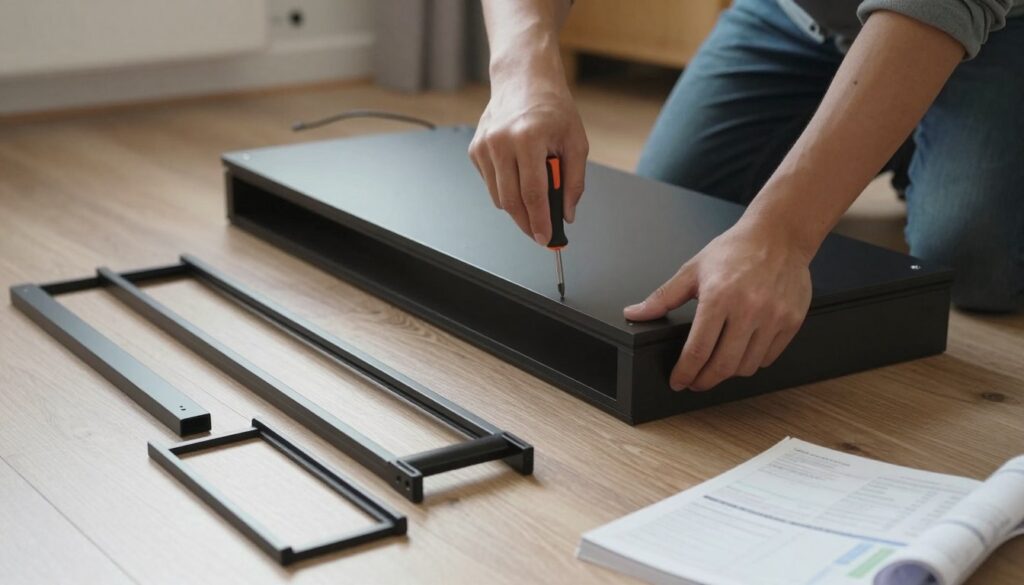
Step 2: Assemble Your Desk
Follow the provided instructions and keep tools handy. Standing desks often take longer to assemble — allow 30–60 minutes. Traditional desks assemble faster.
Assembly tips:
- Lay out parts and hardware first and confirm nothing is missing
- Don’t fully tighten fasteners until all pieces are aligned
- Have a second person hold panels when needed
- If it’s a motorized desk, test the motor before placing heavy monitors
Step 3: Set Up Your Computer
Place the computer where it has good airflow and is protected from dust. If using a laptop as your primary machine, decide whether to close it (clamshell mode) with external monitors or keep it open as an extra screen.
Initial computer checklist:
- Connect power and Ethernet, boot, and complete OS setup and updates
- Install chipset and GPU drivers before adding multiple monitors
- Keep the computer elevated or on a stand to improve ventilation
Step 4: Position Your Monitors
Correct monitor placement reduces neck and eye strain and speeds visual scanning across screens.
Positioning guidelines:
- Primary monitor centered in front of you at arm’s length (20–30 inches)
- Top of the primary screen at or slightly below eye level
- Secondary monitors angled toward you and kept close to reduce head rotation
- Use VESA arms if possible to fine-tune height and tilt
Connect monitors using HDMI or DisplayPort. If a monitor isn’t detected, check cables and try a different port or cable before troubleshooting drivers.
Step 5: Configure Display Settings
After physical setup, configure displays in your OS so the cursor and windows move logically between screens.
Windows quick steps:
- Right-click desktop → Display settings → Detect and rearrange displays to match physical layout
- Set primary display and match each monitor’s native resolution (typically 1920×1080)
- If text is small, set scaling to 100–125% per monitor
Step 6: Install Your Trading Software
Download and install your broker’s trading platform and any charting software you plan to use. Many platforms offer a paper-trading mode — use it to verify functionality before risking real capital.
Software checklist:
- Install trading platform, charting software, and any utilities (session timers, news aggregators)
- Log into demo/paper accounts to test order entry and data feeds
- Arrange saved window layouts for fast startup each day
Step 7: Organize Cables and Power
Good cable management improves safety and system reliability, and prevents cables from snagging when you move a standing desk.
Power and cable tips:
- Use a surge protector or UPS for your computer and monitors
- Bundle and route cables with sleeves or Velcro ties; mount the power strip under the desk
- Leave extra slack for desk height adjustments on sit-stand desks
Step 8: Adjust Your Chair
Set up your chair for ergonomic posture so you can trade comfortably for long hours.
Adjustment checklist:
- Seat height: feet flat, knees at ~90 degrees
- Seat depth: 2–4 inches between seat edge and back of knees
- Lumbar support: settle the natural curve of your lower back against the support
- Armrests: set so shoulders stay relaxed
- Backrest: slightly reclined for comfort but supporting an upright posture
Step 9: Test Your Complete Setup
Before trading live, run a full test day using paper money or small positions to ensure everything works under real conditions.
Test checklist:
- Run a speed test (e.g., speedtest.net) and check ping/latency to typical servers
- Execute practice trades to confirm order routing and execution speed
- Monitor system performance (CPU, RAM) during heavy charting and news streams
- Note any ergonomic tweaks (monitor angle, chair settings) and update saved layouts
Troubleshooting quick tips: if a monitor flickers, swap cables or try a different input; if the trading platform lags, close browser tabs and check for background updates; if orders fail, verify internet and broker connection before trading real money.
Tips for Optimizing Your Trading Workspace
Your initial setup gives you a working trading environment, but small optimizations boost productivity and comfort. These practical adjustments help you extract more value from your trading desk investment and improve focus during market hours.
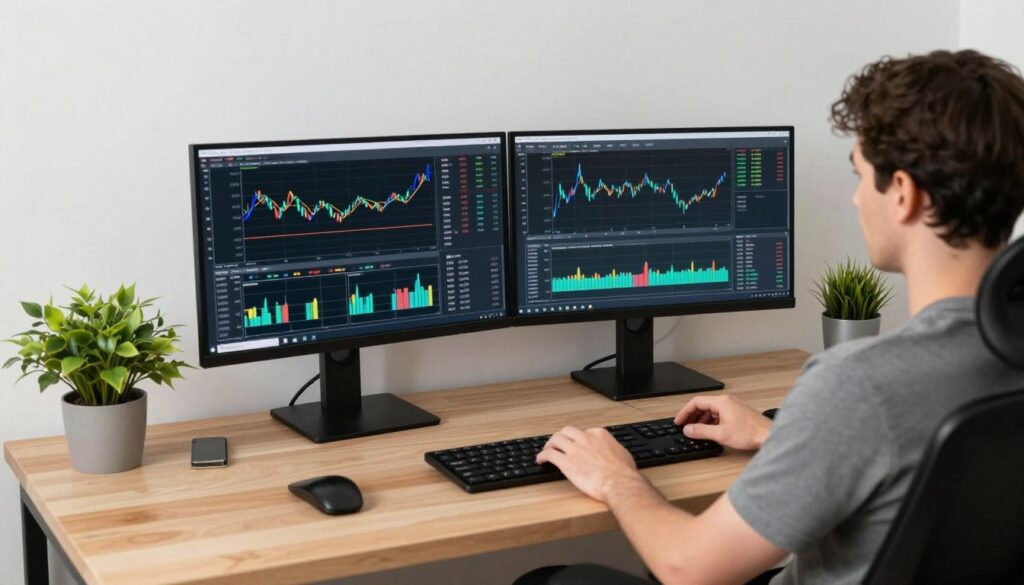
Create Custom Window Layouts
Save time every morning by creating and saving custom window layouts for your trading platform and charting software. Most platforms let you save workspace templates; use one layout for active intraday trading (large chart + order entry) and another for slower monitoring with more news panes.
Tools that help: Microsoft PowerToys (FancyZones) for custom snap zones, or built‑in Windows Snap shortcuts (Win + Arrow). Save at least two layouts and restore them automatically on startup to cut setup time.
Top 5 Optimizations You Can Do This Week
- Save a window layout for your trading platform and test it for one week.
- Set a 20-20-20 reminder app or phone timer to reduce eye strain.
- Organize cables and mount the power strip to clear desk space.
- Adjust monitor brightness to mid-level and set color temperature for your room.
- Back up your trading layouts and journal to cloud storage weekly.
Implement the 20-20-20 Rule
Eye strain accumulates over hours of screen time. Follow the 20-20-20 rule: every 20 minutes, look at something 20 feet away for 20 seconds. Use a simple phone timer, a desktop reminder app, or a browser extension to prompt breaks without distracting you from market action.
Also, set monitor brightness to match ambient light — roughly 50–70% for most rooms — and prefer warm color in the evening to reduce blue light exposure.
Maintain Good Posture Habits
Ergonomics affect decision quality. Sit with your spine supported, shoulders relaxed, and elbows close to your body. Keep keyboard and mouse within easy reach to avoid leaning forward, and consider a keyboard tray if your desk height forces you to reach.
If you use a standing desk, alternate sitting and standing every 30–60 minutes. The movement boosts circulation and reduces fatigue; standing constantly all day can also cause strain, so balance is key.
Keep Your Workspace Clean
A tidy desk reduces distractions and helps maintain focus. Schedule a short weekly tidy: file papers, wipe monitors with screen-safe wipes, and dust keyboards and mice. Use desk organizers to keep essential items within arm’s reach but off the primary work surface.
Control Your Environment
Small environmental changes improve concentration: maintain comfortable temperature and ventilation, use noise-cancelling headphones to block household noise, and control natural light with blinds to prevent glare. For background sound, many traders prefer instrumental or white-noise tracks — avoid lyrical music during active decision-making periods.
Backup Your Data Regularly
Protect trading layouts, journal entries, and strategy notes with regular backups. Use a combination of cloud storage and local external backups. Encrypt sensitive files if storing them in the cloud, and schedule automatic weekly backups so you don’t have to think about it.
Final quick CTA: implement one optimization today — save a window layout and run it for a week to measure how much faster you can access information and make decisions.
Budget Alternatives and Future Upgrades
Not everyone can spend $1,000 right away. Below are practical lower-cost starting options and a logical upgrade path so your trading desk grows as your skills and profits do. These choices balance immediate needs with future investment opportunities.
Starting with a Smaller Budget
You can begin trading with a smaller outlay and still remain functional. Two sensible entry-level configurations:
Ultra-Budget Setup ($400–500)
Minimum gear that lets you trade while you learn — compromises on comfort but keeps core functionality.
- Single 24‑inch monitor (primary chart screen)
- Budget laptop (portable, connects to external monitor)
- Basic stable desk (enough surface for screens)
- Standard office chair (upgradeable later)
- Simple keyboard & mouse
Mid-Range Setup ($600–700)
Add a second monitor and better seating to significantly improve productivity and comfort.
- Two 24‑inch monitors (major ROI for productivity)
- Mid-range desktop or laptop with SSD
- Stable desk with adequate surface area
- Basic ergonomic chair
- Wireless keyboard & mouse and desk lamp
Most traders get the biggest immediate benefit from adding a second monitor — it’s the highest-impact purchase per dollar for improving workflow and decisions.
Smart Upgrade Path
When you’re ready to upgrade, follow this sequence to maximize returns:
- Add a second monitor first: biggest productivity gain (≈ $120–150).
- Improve your desk: upgrade to a standing desk to alternate positions (≈ $200–300).
- Upgrade your chair: ergonomic chair reduces fatigue (≈ $150–300).
- Add a third monitor: for traders tracking many symbols or timeframes.
- Upgrade computer components: add RAM ($50–100) or a better CPU/GPU if performance lags.
- Add premium accessories: monitor arms, mechanical keyboard, UPS for clean power, and premium charting software as needed.
This order prioritizes gains in visibility, comfort, and reliability — the three things that most affect trading performance and longevity.
Used Equipment Considerations
Buying used gear can save serious money, but inspect items carefully. Good candidates for used purchases include monitors, desks, and monitor arms. Avoid used computers, mice, power strips, and cables unless you can fully test them.
What to test in person:
- Monitors: check for dead pixels, backlight bleed, and color consistency
- Desks: confirm stability and check for warps or damage
- Chairs: sit for several minutes to check cushioning and mechanism
- Ask about return policy or short-term guarantees when possible
Sources: local marketplaces, office liquidation sales, and refurbished retailers often carry solid deals. For power devices, prefer items with UL/ETL certification to reduce electrical risk.
Premium Upgrades for Serious Traders
Once trading is profitable and your needs are clear, consider targeted premium upgrades rather than buying everything at once:
- Ultra-wide or 4K monitors: show more data without windowing (high cost per monitor)
- Monitor arms: improve ergonomics and free desk space
- Mechanical keyboard and high-precision mouse: comfort and responsiveness
- Uninterruptible Power Supply (UPS): protect against outages and data loss
- Premium charting software: advanced data feeds and indicators (monthly fees)
Premium items provide diminishing returns for many traders; upgrade only when a clear need appears tied to your trading style and data requirements.
If you’d like a recommended plan for a $400 starting budget and a 3‑month upgrade schedule, I can draft a step-by-step buy-and-upgrade checklist tailored to your goals.
Common Setup Mistakes to Avoid
Many new traders repeat the same predictable errors when building a trading desk. Avoiding these common mistakes saves time, money, and frustration — and keeps your focus on the markets instead of equipment problems.
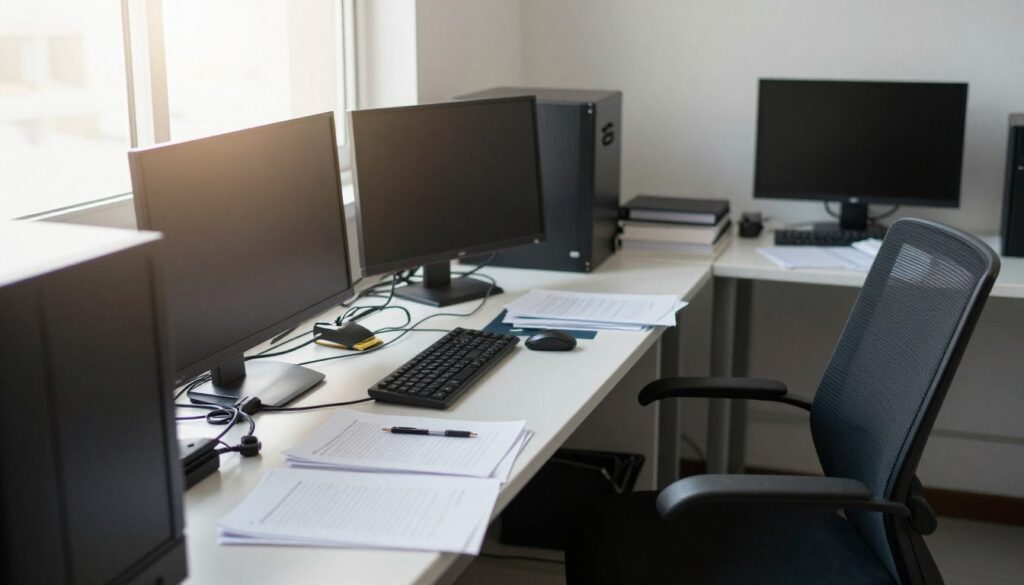
Mistake 1: Buying Cheap Furniture That Breaks
Buying the absolute cheapest desk or chair often backfires — unstable desks, broken mechanisms, or collapsed surfaces interrupt trading and require early replacement.
Quick fixes:
- Check weight capacity and read stability reviews before buying.
- Prefer modestly priced, well-reviewed desks and chairs over bargain basement offers.
Mistake 2: Ignoring Ergonomics Until Pain Starts
Many traders ignore ergonomics until back or neck pain appears. That delay leads to lost time and decreased performance.
Quick fixes:
- Choose a chair with lumbar support and adjustable height from the start.
- Adjust monitor height and keyboard position before long sessions begin.
Mistake 3: Positioning Monitors Incorrectly
Poor monitor placement causes neck strain, eye fatigue, and slower scanning between charts — all of which reduce trading performance.
Quick fixes:
- Center your primary monitor; keep secondaries close and slightly angled.
- Set primary top edge at or slightly below eye level and sit 20–30 inches away.
Mistake 4: Overlooking Internet Connection Quality
A weak or unstable internet connection leads to delayed data, missed execution opportunities, and potentially costly mistakes.
Quick fixes:
- Use wired Ethernet where possible and test speed/latency (speedtest.net).
- Keep a mobile hotspot as a backup and upgrade your plan if download/upload or latency are poor.
Mistake 5: Creating Cable Chaos
Messy cables look unprofessional and cause accidental disconnects or trip hazards, especially around a standing desk.
Quick fixes:
- Bundle cables with sleeves or Velcro ties and route them along desk legs.
- Mount a surge-protected power strip under the desk and leave slack for height changes.
Mistake 6: Buying Components That Don't Work Together
Buying monitors without checking your computer’s video outputs or choosing furniture that doesn’t fit your space causes compatibility headaches.
Quick fixes:
- Verify GPU/display outputs (HDMI/DisplayPort) before ordering extra screens.
- Measure your room and desk area to confirm fit and clearance for monitor stands or arms.
Mistake 7: Overspending on Unnecessary Features
High refresh rates, RGB lighting, and gaming extras often add cost without improving trading decisions. Prioritize essentials that affect visibility, speed, and comfort.
Quick fixes:
- Spend on a second monitor and a good chair before splurging on gaming features.
- Choose features that directly support trading performance (screen size, resolution, stability).
Mistake 8: Neglecting Proper Lighting
Poor lighting causes eye strain and headaches and makes charts harder to read — a surprisingly common but easy-to-fix problem.
Quick fixes:
- Add an adjustable desk lamp positioned to avoid screen glare.
- Adjust brightness and color temperature to match ambient light throughout the day.
Maintaining Your Trading Setup
Your trading desk needs regular upkeep to stay reliable. Small maintenance habits prevent interruptions, protect your data, and extend the life of monitors, computer, and furniture so you can focus on the markets.
Weekly Maintenance Tasks
Spend 10–15 minutes each week on these quick checks:
- Wipe monitors with a screen-safe microfiber cloth (unplug power first if recommended by the manufacturer)
- Clear the desktop of loose papers and clutter to improve focus
- Empty trash and recycling so the area stays tidy
- Tidy any cable tangles using Velcro ties or clips
- Verify cables and connections are secure
- Restart your computer to clear temporary files and refresh memory
These small tasks reduce the chance of surprises on live trading days and keep your workspace professional.
Monthly Maintenance Tasks
Once a month, do a deeper pass to prevent wear and catch issues early:
- Clean keyboard with compressed air and wipe surfaces with appropriate cleaners
- Clean mouse feet and sensor area to maintain smooth tracking
- Check all cable connections and look for fraying or damaged insulation
- Update operating system and drivers (graphics, network, chipset)
- Run a full antivirus/malware scan
- Back up important trading data, layouts, and journals to cloud and local drives
- Tighten any loose desk or chair screws and test mechanical adjustments
- Vacuum or dust around computer vents to reduce overheating risk
Safety note: unplug devices before cleaning power strips, outlets, or internal components; follow manufacturer guidance to avoid voiding warranties.
Maintenance Calendar (copyable)
Easy schedule to paste into your calendar app:
- Weekly (e.g., every Friday): monitor wipe, desk tidy, cable check, restart
- Monthly (first Saturday): deep clean keyboard/mouse, driver updates, backups, tighten hardware
When to Replace Components
Watch for these signs that it’s time to replace items rather than repair them:
- Dead pixels or increasing display artifacts
- Colors shift or backlight degrades
- Screen flickers, blacks out, or hardware warranty expires
- You need a larger size or higher resolution for clearer charts
Replace Monitors When
- Programs run slowly despite upgrades (consider RAM/SSD first)
- Frequent crashes or hardware errors
- Age and firmware support drop off (typical desktop lifespan ~5–7 years, sooner for laptops)
Replace Computer When
- Desk wobbles despite tightening or shows structural damage
- Chair padding compresses and lumbar support fails
- Mechanical adjustments (height, recline) stop working
Replace Furniture When
Don’t wait until total failure. Replace components when their degradation starts to affect your trading comfort, visibility, or system reliability.
Recommended tools: compressed air, microfiber cloths, cable ties, a basic screwdriver set, and a small backup drive — these pay for themselves by reducing downtime and data risk.
Final Recommendations for Your Trading Success
You now have a clear plan for building an effective day trading desk setup around the $1,000 mark. Below are concise next steps, priorities, and mindset reminders so you can turn this plan into action and improve your trading performance over time.
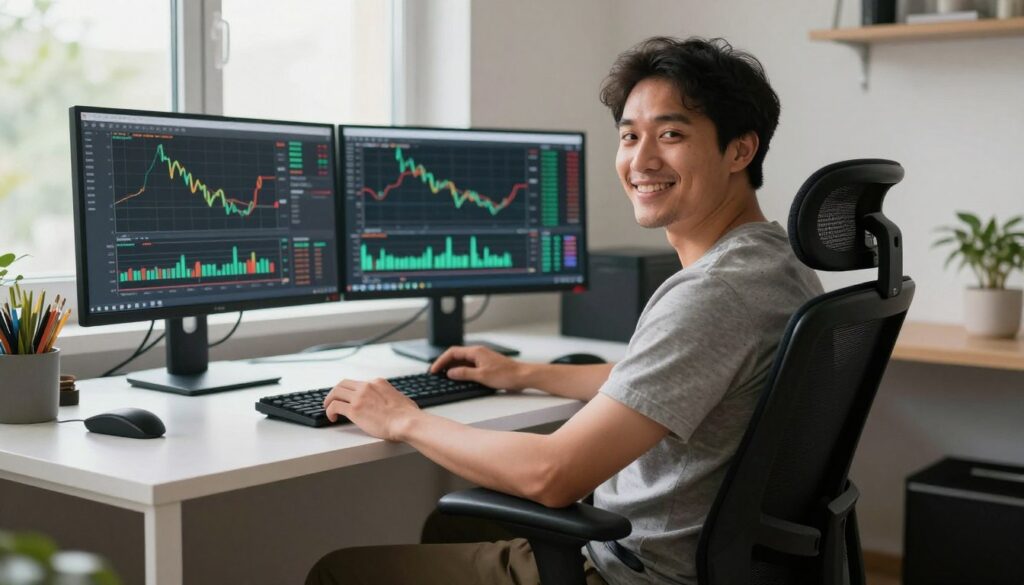
Start with Essential Components First
If you can’t buy everything at once, prioritize in this order — these items give the largest immediate impact on your ability to run a reliable setup and make good decisions:
- Computer: the backbone that runs your trading platform and charting software reliably.
- Monitor(s): at least one quality 24″ monitor; add a second monitor as soon as possible for a major productivity boost.
- Stable desk: enough surface area and stability to hold monitors and accessories (standing desk is a later upgrade if budget is tight).
- Chair: ergonomic support preserves focus during long hours and prevents fatigue-related mistakes.
- Internet: reliable wired or high-quality Wi‑Fi with a backup option to avoid missed trades.
- Keyboard & mouse: comfortable, responsive input devices for fast order entry.
- Lighting & cable management: proper lighting reduces eye strain and tidy cables prevent accidents and downtime.
With items 1–5 in place you can trade responsibly; add the remaining items to improve comfort and productivity.
Equipment Supports Skill — Not the Other Way Around
An optimized trading desk improves speed, comfort, and access to information, but it doesn’t replace trading education and discipline. Focus on learning strategy, risk management, and market analysis while you build your physical setup.
Practical next steps for skill-building:
- Paper-trade for several weeks after setup changes to validate your workflow and platform layouts.
- Keep a trading journal to analyze decisions and outcomes — equipment only amplifies how well you can execute your strategy.
- Invest in quality charting software and education once you consistently perform well with the basics.
Plan for Growth and Smart Upgrades
Your first setup is a starting point. As your trading needs become clearer, make targeted investments rather than random upgrades. Common upgrade paths include adding more monitors, upgrading RAM or GPU, improving your chair, and moving to premium charting software.
Keep a “wish list” of future upgrades and prioritize by ROI (how much each change will improve your trading performance or comfort).
Seven-Day Setup & Test Plan
Use this short plan to go from delivery to live trading in one week:
- Day 1: Assemble desk and position monitors; set up computer and connect Ethernet.
- Day 2: Install trading platform and charting software; import or create preferred layouts.
- Day 3: Configure ergonomics (chair, monitor height, keyboard/mouse) and lighting.
- Day 4: Organize cables, mount power strip, and test surge protection/UPS if available.
- Day 5: Run a full-day paper trading session and note UI/window adjustments.
- Day 6: Review performance journal and adjust layouts or hardware as needed.
- Day 7: If paper trading results are stable, begin live trading with small position sizes.
Take Action — but Be Smart
Information alone doesn’t create results. Compare prices, read recent reviews, and buy in stages if needed. Consider used or refurbished monitors and desks to stay inside a strict budget — but prefer new for computers, chairs, power strips, and critical power/cable components.
Ready to Build Your Trading Setup?
Start with the prioritized list above and copy the 7-day plan to your calendar. If you want, export a shopping checklist or get a tailored build (budget vs. standard) based on your exact spending limit.
Your Trading Journey Begins Now
Spending roughly $1,000 on a proper trading desk is an investment in your productivity and health. The right trading desk and equipment let you process market information faster, make clearer decisions, and trade longer without unnecessary fatigue.
Remember: successful traders combine the right tools with disciplined learning and risk management. Build your setup, practice consistently, and upgrade deliberately as your needs evolve. Your setup creates the environment — your skill creates the results.
This post delivered several useful ideas to consider today and I look forward to reading more from you
Thanks for your support.
This writeup provided valuable insight into this subject while browsing online and I look forward to reading more from you
Thanks for your support.